Friday, September 17, 2010

Building Windows Phone 7 Application .

In this blog Post I am going to build small Windows Phone Twitter Search Application . When we finish building then app this is how it looks

image 

Here is the steps we are going to follow .

1) Create VS.NET 2010  Windows Phone Application .

2) Build XAML UI.

3) We are going to parse that result using  LINQ TO XML.

4) Write Button click Event handler which will execute the  Twitter Search API and  get the  ATOM format Result.

5) Store the result in our Model  (Class which holds the  following properties Date published, Title, Image Uri).

6) Bind to the  View.

First  lets  create  a windows phone 7  Application project and  name it  TWAPP.

image

The following  XAML code builds  Textbox and Search button  where  user enter  search string and click Search button.

image

Next  we are going  construct the XAML which shows the  user Search result .

image

Here is our  MODEL

image


image

In Silverlight all calls to out side world is ASYNC.  Now we finished building the app and ready to compile and run .

image 

Now  enter the  some search string an click search button.

image


Nandri(Thanks)

Sreenivasaragavan.

Thursday, September 16, 2010

MS Windows Phone 7 Developer Tool RTM Released today

Today MS  Released  Windows Phone  Developer  Tool .  To  develop Windows Phone  7  Apps.

please point your Browser to  the following URL and Download the tool. http://developer.windowsphone.com/windows-phone-7/ 

image

Windows Phone 7  Application different Project Templates.


image

My First Windows Phone 7 App.

image


Nandri(Thanks)

SreenivasaRagavan

Wednesday, September 15, 2010

MS Today Released IE 9.0 Beta

Here is the URL to Download  http://windows.microsoft.com/en-US/internet-explorer/products/ie-9/home?os=win7&arch=b&browser=ie


image


My  Blog browsed using IE  9.0

image

Nandri(Thanks)

SreenivasaRagavan.

How to Debug .NET Framework Source Code

In this blog post I am going to show how to setup VS.NET Environment to step into .NET Framework source code. To do this exercise let us create small VS.NET Application and add some code which uses any of the .NET Framework Library Functions here I am using LINQ.  


image

This below source code just returns the even numbers from integer array and prints into Console .

image

Right click on the project and make sure you uncheck the  Enable the Visual Studio hosting process option as shown below.

image

Now go to Tools option from main menu and select Options as shown below.

image

Now set the options as shown below.

image


image

Now press F11 and debug the app. ( First time you can see the Dialog windows which shows downloading the .NET Framework Symbol )

image

When I hover over evennumbers variable I could able to see the source code life for that  as shown above. Now we are able to debug the .NET Framework source code same we do with our Custom code.

Nandri(Thanks)

SreenivasaRagavan.

Friday, August 27, 2010

Building Applications for MS Touch devices using Microsoft® Surface® Toolkit for Windows Touch Beta

To get started on this first go ahead and download the following 

Microsoft® Surface® Toolkit for Windows Touch Beta SDK

http://www.microsoft.com/downloads/details.aspx?FamilyID=801907A7-B2DD-4E63-9FF3-8A2E63932A74&displaylang=en&displaylang=en 

Once you installed you will see the following Template .   Building Application for  Surface devices is same as Building Windows WPF Application .

image

let is try creating sample application . Here I am going to use ScatterView control

The ScatterView control as a container for any other user interface (UI) element. When you place a UI element inside of a ScatterView control, that element automatically gains the ability to be moved, rotated, and resized using one or multiple touches.


image

Here is the Result for the above XAML code in  MS Surface Simulator

image

Please download MS Surface SDK and explore the more controls .

Nandri(Thanks)

SreenivasaRagavan.

Tuesday, August 17, 2010

VS.NET IDE Color Schemes


Please click below link and get the color scheme

http://studiostyles.info/schemes/latest

Here is some sample for view.

image


Nandri(Thanks)

Sreenivasa Ragavan

Tuesday, July 13, 2010

Null-Coalesce operator (??) in C#

In OOP Programming we often check for null values in our code  Here is the null-coalesce operator (??) comes in handy and can write very less code to check null.

image

Nandri(Thanks)

R.SeenivasaRagavan

Tuesday, June 1, 2010

To Know more about SharePoint 2010 Here is My Best Friend Blog


Real Experience 

http://myspexp.com/

image

Nandri(Thanks)

Sreenivasaragavan.

Saturday, May 29, 2010

Silverlight 4.0 <=WPF --ICommand

Now Silverlight 4.0 Supports ICommand  Interface but not fully only two controls

  1. Button
  2. Hyperlink button.

In Silverlight 4.0 the Button UI Element has to extra properties Command and CommandParamter.

 image

Here i am going to show simple example using ICommand Interface in Silverlight 4.0.

First create a Silverlight application. 

image

Now we need to Add Class file to the project and Implement the ICommand Interface.

image


Here the above code we are checking if user did not enter anything in textbox we are not executing the command . If He /She enters something and click button we will display the Entered Text in MessageBox.

Now lets Add XAML code to create Simple UI .  Here i am adding one Textbox and Button.

image

Now lets do the Binding (wire up) our Command class to this UI.  Here i am doing Element to Element data binding.

image

Note:

I do not have any code in CodeBehind in MainPage.Xmal.cs for the Button Click.

image

Now run the application and click Execute Command Button and see what is happening after that put some text in text box and click it now the message box displayed the text which you entered.

image

Nandri(Thanks)

SreenviasaRagavan.

Enabling OData Endpoint When Creating WCF-RIA Services

image


When you create a WCF RIA Service using VS.NET 2010 we can easily enable OData endpoint as well.  This can be done just clicking Check-Box. First let see in Action. First create a silverlight application and do not forgot to check Enable WCF RIA Service Check-Box as shown below.

image

Next we need to add/Create Model which will  expose via WCF-RIA Services. We can create Model using EF or LINQ to SQL .  Once you create the model just compile the project so that VS.NET IDE knows the changes we made to our project. (This compilation needed to show Entity  when we create RIA services ).

Next step is to Add Domain Data Service template to our project so that we can create WCF RIA Services .

image 

If you see the below dialog  box we have an options to check and expose the OData Endpoint. 

image

When you check the Expose OData endpoint Check-Box the following changes were made to your project.(Web Project).

1) The following OData endpoint added to your web.config file

image 

2) Next on  each paramaterless query methods  marked [Query[IsDefault=true)]  attribute

image

That is it now compile the project and browse the endpoints from IE. Here WCF RIA Services are created @ runtime you do not find  .SVC file  ( it is created by virtual provider). To access WCF RIA SERVICE and OData Endpoint  here is the URL format which we need to construct .

http://ServerName:portnumber/Projectname-DomainService.svc.  in my case i am running @ local machine so the WCF RIA SERVICE Endpoint is

http://localhost:61411/ExposeOdataWebApplication-AWDomainService.svc

image

and OData Endpoint is http://localhost:61411/ExposeOdataWebApplication-AWDomainService.svc/OData/

image

if you browse http://localhost:61411/ExposeOdataWebApplication-AWDomainService.svc/OData/ProductCategorySet

image

Nandri(Thanks)

SreenivasaRagavan.

Exposing Data using OData protocol and Consuming it using Excel [Power Pivot]


MS Renamed  ADO.NET Data Service => WCF Data Service this service exposed using OData Protocol  OData means Open Data protocol . here is the some of the MS products uses this OData including: SharePoint 2010 (Lists), SQL Server 2008 R2, PowerPivot, Windows Azure Table Storage

First Create ASP.NET Empty Web application project.

image

Now we need to add or create our Model Here i am going to use LINQ to SQL. We can use ADO.NET Entity Data Model as well. Now Select LINQ to SQL Classes template and add to our ASP.NET project. LINQ To SQL Template provides Designer surface where you can drag and drop the DB tables which you wanted to expose as WCF Data Services ( OData).

image

Once Model is created next we need to WCF Data Service template to our project.

image

Next we need to open WCFdataService1.cs file and Add our LINQ TO SQL DataContext class  and Edit the SetEinittySetAccessRule config .

Here i wanted to expose all the Entity so i provided *.

image

Now compile the project and Browse the .SVC

image

Here below query shows how to access all the records from Departments.

image

Now we have successfully exposed our WCF Data Service (OData) . Next we will consume this Data service from Excel using Power Pivot Add-in. first we need to download Power Pivot and install.

Now fire up Excel 2010 you will see Power Pivot Ribbon tab click that.

image

Next Click Power Pivot window and click From Data Feeds ( Our services expose Atom pub)

image

Next Edit friendly name for your Data Feed and provide the Data Feed URL in my case the service is Hosted and running in my local box so my URL will be http://localhost:61411/WcfDataService1.svc. to verify the service is running  you can click Test Connection button and check.

image

Once you have done that then click next . at this point Excel power pivot connects  service  and gets all Data.

image

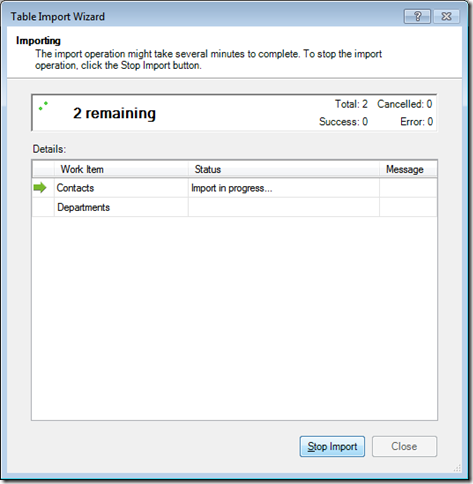
Next select the Tables you wanted to import and click Finish .
image

Here is the final result .it tells how may rows are in each tables.

image

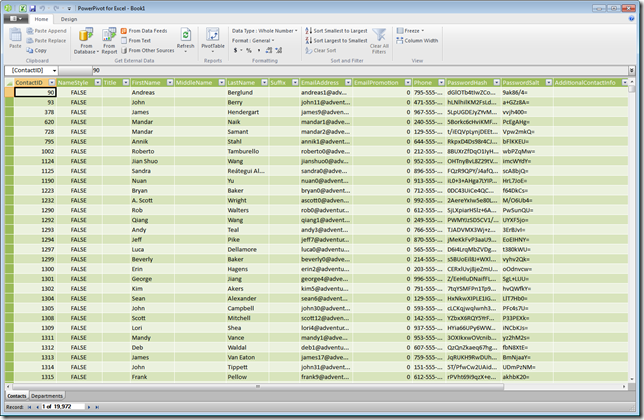
Now we have all the Data in Excel . Since most of them knows how to work on excel  they can do all BI related stuff.
image

You can do all Filter , sorting etc…

Nandri(Thanks)

Sreenivasaragavan.