Showing posts with label WIN-8. Show all posts

Sunday, May 6, 2012

Windows-8 Tile Notifications

Last Blog post we saw how to notify the user using TOAST. In this blog post we are going to see how we can update the Windows –8 Application Tile. In Windows-8 Tiles are Live that means all Tiles and start screen able to show live information as shown below . here I can see current Temperature of the city I live & and my Facebook contacts status updates.

image

You can update Information on Tiles in Four  ways

1)  Push Notification Service

2) Locally

3) Scheduled

4) Periodic

But in this blog post we are going to see how we can update Tiles Locally . Updating Tiles notification same as TOAST. but here we call  Method called TIleUpateManager.

 image

call this function

protected override void OnNavigatedTo(NavigationEventArgs e)
       {
           DisplayToast();
           TileUpdates();
       }

image

Nandri(Thanks)

Sreenivasaragavan Ramadurai.

Friday, May 4, 2012

Windows-8 Contracts

What is Contracts?

Basically Contracts means two party agreeing upon some terms to work with.  Here in Windows 8 we have 5 contracts which we can integrate with our own application this contracts also called Windows 8 Charms.

image 

In this blog we are going to see how we can Integrate Search charms to our application .  Here I am going to build a small application which will take Search Query from User and search it in MS Bing and shows the result in Web View Control . Web View control is new to Windows -8

Here are the steps we need to do

1) First Create Blank Windows Metro Application.

2)  Add or Declare the Search Contract in  Manifest .

image


3) Creating a SearchPane

This class basically Represents and manages the search pane that opens when a user activates the Search charm. The search pane provides a consistent, touch-friendly search box and optional search suggestions

Event Description
QueryChanged Fires when the user changes the text in the search box.
QuerySubmitted Fires when the user submits the text in the search box and the app needs to display search results.
ResultSuggestionChosen Fires when the user selects one of the suggested results that was provided by your app and displayed in the search pane.
SuggestionsRequested Fires when the user's query text changes and the app needs to provide new suggestions to display in the search pane.
VisibilityChanged Fires when the user opens or closes the search pane.

4) Next we are going to implements 2 events Query Submitted and SuggestionsRequested  .

  Query Submitted event called when user search the

 image .  

The SuggestionsRequested   will called when use start typing in Search box .

here is our suggestions collections

  public string [] mySuggestions = { "Rama","Baba","Krishna","Allah","Jesus"};


image


  protected override void OnNavigatedTo(NavigationEventArgs e)


        {


            var sp =SearchPane.GetForCurrentView();


            sp.QuerySubmitted += async  (s, args) =>


                {


                    var searchString = args.QueryText;


                    var bingurl = "http://www.bing.com/images/search?q=" + searchString;


                    //HttpClient httpReq = new HttpClient();


                    //httpReq.MaxResponseContentBufferSize = int.MaxValue;


                    //var htmlStr = await httpReq.GetStringAsync(bingurl);


                    this.Dispatcher.Invoke(Windows.UI.Core.CoreDispatcherPriority.Normal,


                        (sender, eargs) =>


                        {


                            mywebSearch.Navigate(new Uri(bingurl));


                        }, this, null);


                };


            sp.SuggestionsRequested += (s, args) =>


                {


                    args.Request.SearchSuggestionCollection.AppendQuerySuggestions(mySuggestions);


                };


        }


5) Here is XAML UI to display the Search Result in Web View Control.


<Grid Background="{StaticResource ApplicationPageBackgroundBrush}">


        <Border BorderBrush="Blue" BorderThickness="5" CornerRadius="10">


            <StackPanel>


                <TextBlock Text="Sreeni Metro Search Charms Contract Sample Application" VerticalAlignment="Center" HorizontalAlignment="Center"  FontFamily="Arial" FontSize="20"/>


            <WebView x:Name="mywebSearch" Height="660"/>


        </StackPanel>


        </Border>


    </Grid>


6) Now runt the application and bring the Search Charms pressing Windows+C key.
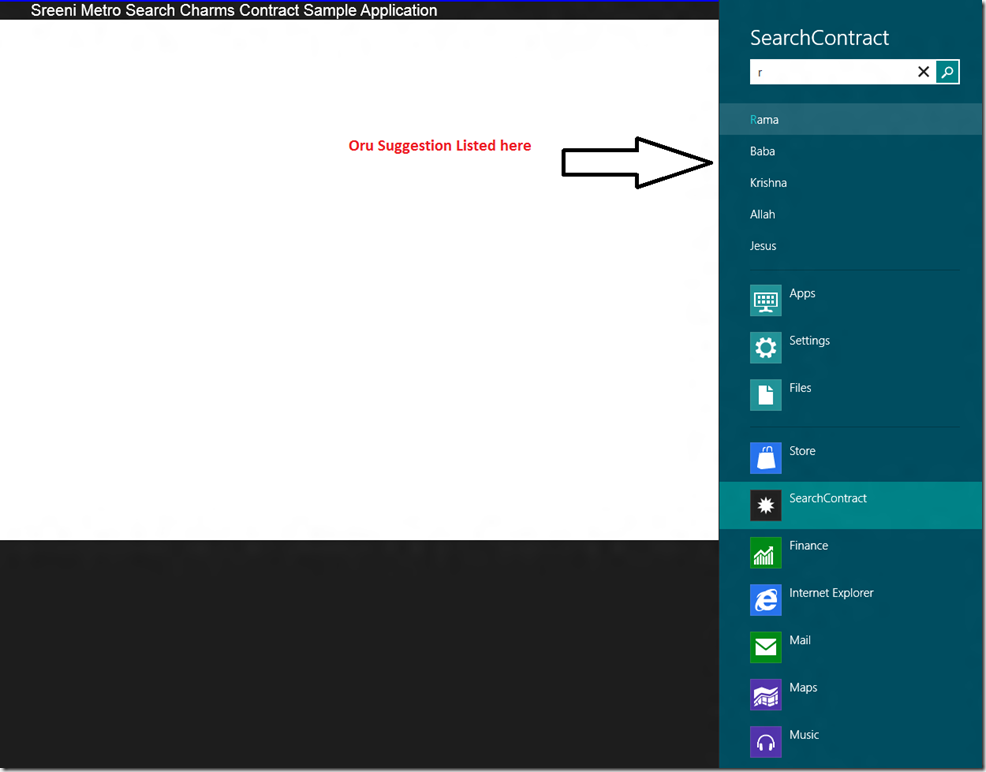


image


Now Enter the Search string you want to search in BING ( BeatINGoogle).


image


Here onwards I like to share my Own Tech Jokes  every Blog I publish .  You can do either  Ctrl-X or Ctrl-C But when you do please give Food or Water to person or planet.


JOKE :  Just Opening my Knowledge to Everyone.


Today my Friend called and told me he is looking for new gig because his contract was over. I gave him suggestion that  do not look for CLOUD COMPUTING jobs.   He asked me why ? I told him because it’s summer so (Hardly you see the clouds).


Nandri(Thanks)


Sreeni

Wednesday, May 2, 2012

Windows 8 Metro Application Creation Step by Step


Sorry Friends after long time I am back to blog.  I was really busy with my Office and Personal work so not able to blog regularly. Now I got some free time so I downloaded Windows 8 Customer preview with VS.NET 2011 and start looking at new  Windows 8 Metro app.

In Windows 8 Run time called WinRT  I am not going to deep into WinRT now.    In Windows 8  we can develop Metro apps with two choices .

1)   C# , VB.NET , C++ , XAML

2)  HTML 5, CSS , and JavaScript. 

In this  blog I am going to use  C# and XAML to create simple Weather Forecast application. if you want to learn any new stuff better to create simple working application having said that we are going to create the following Windows 8 Metro App.


image

In this application I am calling Free Weather Web service passing the Zip code and getting XML and parsing and displaying  it in  Grid View controls.

Prerequisites

C# 5.0  ( async, await )

XAML

1) First create the Blank Windows Metro application

image

2) Open of the Blank Page.XAML and add the following XAML UI

<Page
    x:Class="WeatherApp.BlankPage"
    xmlns="http://schemas.microsoft.com/winfx/2006/xaml/presentation"
    xmlns:x="http://schemas.microsoft.com/winfx/2006/xaml"
    xmlns:local="using:WeatherApp"
    xmlns:d="http://schemas.microsoft.com/expression/blend/2008"
    xmlns:mc="http://schemas.openxmlformats.org/markup-compatibility/2006"
    mc:Ignorable="d">

    <UserControl.Resources>
        <Style TargetType="TextBlock" x:Key="mytxtBlk">
            <Setter Property="Margin" Value="10"/>
            <Setter Property="FontFamily"  Value="Aerial Black"/>
            <Setter Property="FontSize" Value="18"/>
            <Setter Property="FontWeight" Value="ExtraBold"/>
        </Style>
    </UserControl.Resources>
    <Grid Background="{StaticResource ApplicationPageBackgroundBrush}">
        <Grid.RowDefinitions>
            <RowDefinition  Height="73"/>
            <RowDefinition Height="*"/>
        </Grid.RowDefinitions>
        <StackPanel Orientation="Horizontal" Grid.Row="0" Height="50" VerticalAlignment="Top" HorizontalAlignment="Center" Margin="143,0,277,0" Width="946" d:LayoutOverrides="VerticalMargin">
            <TextBlock Text="Sreeni.NET" Style="{StaticResource mytxtBlk}"/>
            <TextBlock Text="Enter the ZipCode to get Forecast"  VerticalAlignment="Center" HorizontalAlignment="Center" FontFamily="Arial Black" FontSize="30" Style="{StaticResource mytxtBlk}"></TextBlock>
        <TextBox Width="200"  VerticalAlignment="Center"   x:Name="txtzipcode" HorizontalAlignment="Center"></TextBox>
        <Button Content="Get Weather"  VerticalAlignment="Center" HorizontalAlignment="Center" Click="Button_Click_1"/>
        </StackPanel>
    
        <GridView x:Name="wg" Grid.Row="1" >
            <GridView.ItemTemplate>
             
                <DataTemplate>
                    <StackPanel Orientation="Vertical" Width="250" Height="250" Background="#FF161C8F">
                        <TextBlock Style="{StaticResource mytxtBlk}" >
                            <Run Text="City :"></Run>
                            <Run Text="{Binding City}" />
                        </TextBlock>
                        <TextBlock  Style="{StaticResource mytxtBlk}">
                             <Run Text="State :"/>
                            <Run   Text="{Binding State}"/>
                        </TextBlock>
                        <TextBlock Text="{Binding Date}" Style="{StaticResource mytxtBlk}">
                              <Run Text="Date :"/>
                               <Run Text="{Binding Date}"/>
                        </TextBlock>
                        <TextBlock  Style="{StaticResource mytxtBlk}">
                             <Run Text="Min :"/>
                               <Run Text="{Binding Min}"/>
                        </TextBlock>
                        <TextBlock  Style="{StaticResource mytxtBlk}">
                             <Run Text="Max :"/>
                               <Run Text="{Binding Max}"/>
                        </TextBlock>
                        <TextBlock  Style="{StaticResource mytxtBlk}">
                             <Run Text="Description :"/>
                               <Run Text="{Binding Description}"/>
                        </TextBlock>
                       
                    </StackPanel>
                </DataTemplate>
            </GridView.ItemTemplate>
          
        </GridView>
       
    </Grid>
</Page>

3) Add code to call web service and parse the response XML as shown below.


  public async Task<List<WeatherInfo>> GetWeatherInfo(string zipcode)
{
HttpClient httpclient = new HttpClient();
var weatherinfo= await httpclient.GetStringAsync("http://wsf.cdyne.com/WeatherWS/Weather.asmx/GetCityForecastByZIP?ZIP=" + zipcode);

XNamespace ns = "http://ws.cdyne.com/WeatherWS/";
var xmlWeatherInfo=XElement.Parse(weatherinfo);

var city = xmlWeatherInfo.Element(ns + "City").Value;
var state = xmlWeatherInfo.Element(ns + "State").Value;
List<WeatherInfo> winfo = (from weather in xmlWeatherInfo.Descendants(ns+"Forecast")
select new WeatherInfo
{
State=state,
City=city,
Date =weather.Element(ns+"Date").Value,
Description=weather.Element(ns+"Desciption").Value,
Max = weather.Element(ns+"Temperatures").Element(ns+"DaytimeHigh").Value ,
Min = weather.Element(ns+"Temperatures").Element(ns + "MorningLow").Value

}).ToList<WeatherInfo>();

return winfo;
}

private async void Button_Click_1(object sender, RoutedEventArgs e)
{
if (string.IsNullOrEmpty(txtzipcode.Text))
return;
var wdata = await GetWeatherInfo(txtzipcode.Text);

wg.ItemsSource = wdata;
}


}


public class WeatherInfo
{
public string City { get; set; }
public string Date { get; set; }
public string State { get; set; }
public string Description { get; set; }
public string Min { get; set; }
public string Max { get; set; }

}


Nandri(Thanks)


Sreenivasaragavan